> ## Documentation Index
> Fetch the complete documentation index at: https://innateinc-theo-docs-skills-authoring-api.mintlify.site/llms.txt
> Use this file to discover all available pages before exploring further.
# Foxglove Setup
> Visualize ROS2 topics from any machine using Foxglove.
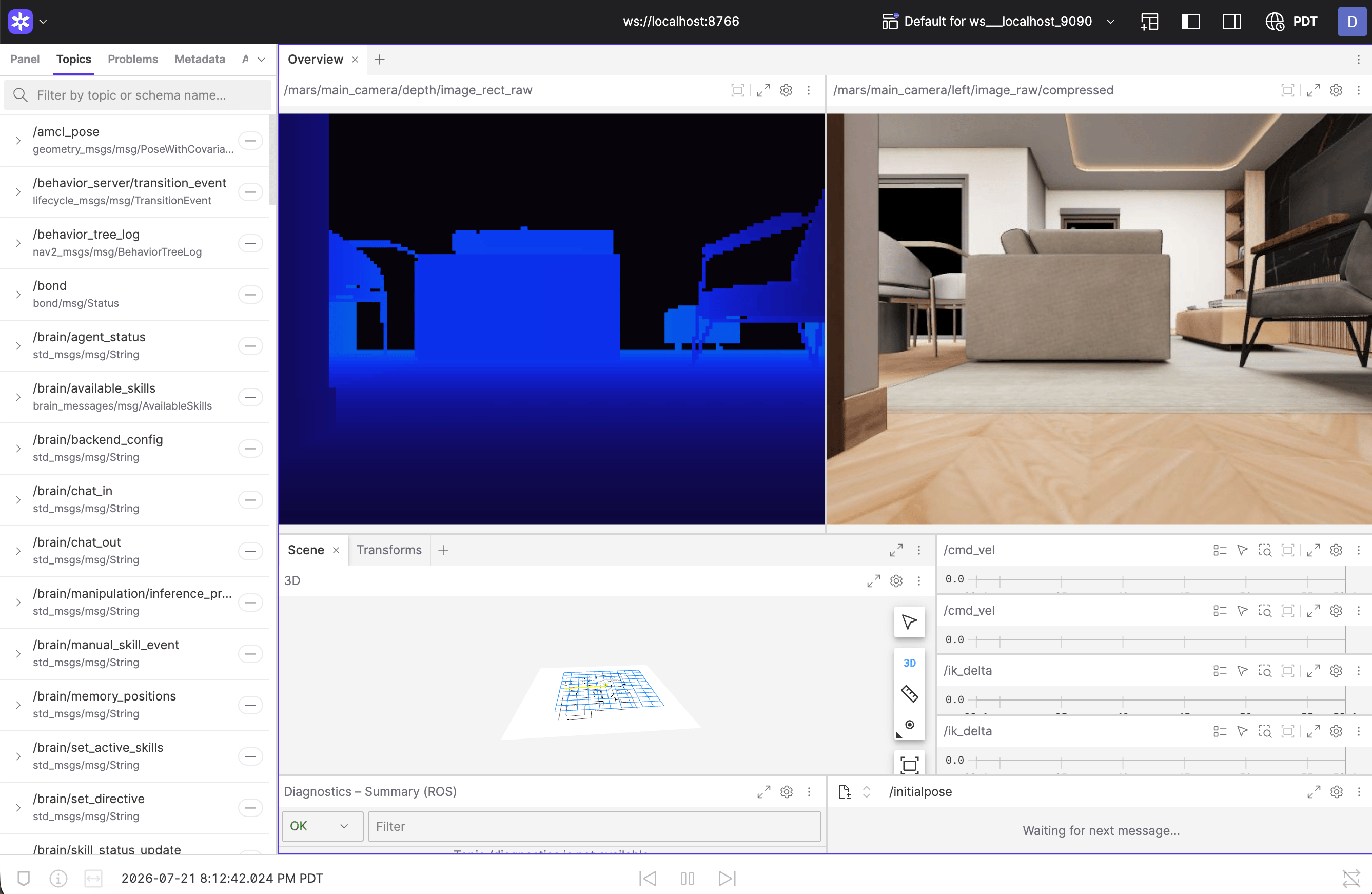
Foxglove lets you see what your robot sees — camera feeds, LiDAR scans, navigation costmaps, TF frames, and `/cmd_vel` teleop — all from a browser. Works on macOS, Windows, and Linux.
 ## How it works
MARS runs a **Foxglove Bridge** that exposes ROS2 topics over WebSocket. You connect to it from [Foxglove Studio](https://foxglove.dev/) on your laptop.
```
MARS (ROS2 topics) → Foxglove Bridge (WebSocket :8765) → Your browser
```
In the [simulator](/simulator/building-with-the-simulator#foxglove-and-ros-tooling) the bridge is always on. On a physical robot it is opt-in — you start it with the `innate` CLI.
***
## Setup
SSH into the robot (or use a terminal on it) and start the bridge:
```bash theme={"languages":{"custom":["/languages/python-typed.json"]}}
innate foxglove start # prints ws://:8765
innate foxglove status # is it running?
innate foxglove stop # stop it
```
`innate foxglove start` prints the exact `ws://` URL to connect to.
Go to [app.foxglove.dev](https://app.foxglove.dev) (or open the desktop app).
Click **Open connection** → **Foxglove WebSocket** → enter the printed URL:
```
ws://:8765
```
Once connected, add visualization panels:
* **Image** panel → select a camera topic (see below) for the camera feed
* **3D** panel → see TF frames, LiDAR, point clouds, and navigation paths
* **Plot** panel → graph any numeric topic over time
* **Raw Messages** panel → inspect any topic's raw data
**Over Wi-Fi, subscribe to the `/mars/main_camera/remote/*` topics, not the raw ones.** The raw camera images (\~0.9 MB/frame) and point clouds (`/mars/main_camera/points`, \~10 MB/s) are far more than a Wi-Fi link can carry, so every panel — including `/cmd_vel` — falls seconds behind. The `remote/` namespace carries the same topics throttled to \~2 Hz (images already compressed), which fits comfortably. Prefer the `.../compressed` image topics and mono `remote/points` over `remote/points_color`. On a wired connection or the simulator, the raw topics are fine.
***
## Useful topics to visualize
| Topic | Type | What you see |
| ----------------------------------------------------------- | --------------- | -------------------------------------------------- |
| `/mars/main_camera/left/image_rect_color` | Image | Main camera feed (rectified color) |
| `/mars/main_camera/left/image_rect_color/compressed` | CompressedImage | Same feed, compressed — prefer over Wi-Fi |
| `/mars/main_camera/remote/left/image_rect_color/compressed` | CompressedImage | Throttled camera for Wi-Fi |
| `/mars/main_camera/points` | PointCloud2 | Depth point cloud (use `remote/points` over Wi-Fi) |
| `/scan` | LaserScan | LiDAR sweep |
| `/odom` | Odometry | Robot position and velocity |
| `/cmd_vel` | Twist | Velocity commands being sent |
| `/map` | OccupancyGrid | SLAM / navigation map |
| `/battery_state` | BatteryState | Battery voltage and percentage |
| `/tf`, `/tf_static` | TF | All coordinate frames |
***
## RViz alternative (Linux only)
If you're on a Linux machine with ROS2 Humble installed, you can use RViz directly. It connects to MARS over Zenoh DDS — no bridge needed.
Make sure your machine is on the same network and Zenoh discovery can reach the robot. Then:
```bash theme={"languages":{"custom":["/languages/python-typed.json"]}}
source /opt/ros/humble/setup.bash
rviz2
```
Add displays for the topics you care about. RViz gives you the most complete visualization experience but requires a native Linux + ROS2 setup.
***
## Troubleshooting
* Verify MARS and your laptop are on the same network.
* Check the bridge is running: `innate foxglove status`, or `ros2 node list | grep foxglove`.
* Use the exact `ws://` URL that `innate foxglove start` printed.
* Try the IP address directly instead of a `.local` hostname.
* Make sure port `8765` isn't blocked by a firewall.
* The bridge only exposes topics that are actively published. Make sure ROS nodes are running: `innate view`.
* Try `ros2 topic list` on the robot to confirm topics exist.
* Image topics are bandwidth-heavy. Over Wi-Fi, use the `/mars/main_camera/remote/*` topics and `.../compressed` variants (see the note above); for the full-rate raw topics, use a wired connection.
* In Foxglove, reduce the image panel's update rate.
## How it works
MARS runs a **Foxglove Bridge** that exposes ROS2 topics over WebSocket. You connect to it from [Foxglove Studio](https://foxglove.dev/) on your laptop.
```
MARS (ROS2 topics) → Foxglove Bridge (WebSocket :8765) → Your browser
```
In the [simulator](/simulator/building-with-the-simulator#foxglove-and-ros-tooling) the bridge is always on. On a physical robot it is opt-in — you start it with the `innate` CLI.
***
## Setup
SSH into the robot (or use a terminal on it) and start the bridge:
```bash theme={"languages":{"custom":["/languages/python-typed.json"]}}
innate foxglove start # prints ws://:8765
innate foxglove status # is it running?
innate foxglove stop # stop it
```
`innate foxglove start` prints the exact `ws://` URL to connect to.
Go to [app.foxglove.dev](https://app.foxglove.dev) (or open the desktop app).
Click **Open connection** → **Foxglove WebSocket** → enter the printed URL:
```
ws://:8765
```
Once connected, add visualization panels:
* **Image** panel → select a camera topic (see below) for the camera feed
* **3D** panel → see TF frames, LiDAR, point clouds, and navigation paths
* **Plot** panel → graph any numeric topic over time
* **Raw Messages** panel → inspect any topic's raw data
**Over Wi-Fi, subscribe to the `/mars/main_camera/remote/*` topics, not the raw ones.** The raw camera images (\~0.9 MB/frame) and point clouds (`/mars/main_camera/points`, \~10 MB/s) are far more than a Wi-Fi link can carry, so every panel — including `/cmd_vel` — falls seconds behind. The `remote/` namespace carries the same topics throttled to \~2 Hz (images already compressed), which fits comfortably. Prefer the `.../compressed` image topics and mono `remote/points` over `remote/points_color`. On a wired connection or the simulator, the raw topics are fine.
***
## Useful topics to visualize
| Topic | Type | What you see |
| ----------------------------------------------------------- | --------------- | -------------------------------------------------- |
| `/mars/main_camera/left/image_rect_color` | Image | Main camera feed (rectified color) |
| `/mars/main_camera/left/image_rect_color/compressed` | CompressedImage | Same feed, compressed — prefer over Wi-Fi |
| `/mars/main_camera/remote/left/image_rect_color/compressed` | CompressedImage | Throttled camera for Wi-Fi |
| `/mars/main_camera/points` | PointCloud2 | Depth point cloud (use `remote/points` over Wi-Fi) |
| `/scan` | LaserScan | LiDAR sweep |
| `/odom` | Odometry | Robot position and velocity |
| `/cmd_vel` | Twist | Velocity commands being sent |
| `/map` | OccupancyGrid | SLAM / navigation map |
| `/battery_state` | BatteryState | Battery voltage and percentage |
| `/tf`, `/tf_static` | TF | All coordinate frames |
***
## RViz alternative (Linux only)
If you're on a Linux machine with ROS2 Humble installed, you can use RViz directly. It connects to MARS over Zenoh DDS — no bridge needed.
Make sure your machine is on the same network and Zenoh discovery can reach the robot. Then:
```bash theme={"languages":{"custom":["/languages/python-typed.json"]}}
source /opt/ros/humble/setup.bash
rviz2
```
Add displays for the topics you care about. RViz gives you the most complete visualization experience but requires a native Linux + ROS2 setup.
***
## Troubleshooting
* Verify MARS and your laptop are on the same network.
* Check the bridge is running: `innate foxglove status`, or `ros2 node list | grep foxglove`.
* Use the exact `ws://` URL that `innate foxglove start` printed.
* Try the IP address directly instead of a `.local` hostname.
* Make sure port `8765` isn't blocked by a firewall.
* The bridge only exposes topics that are actively published. Make sure ROS nodes are running: `innate view`.
* Try `ros2 topic list` on the robot to confirm topics exist.
* Image topics are bandwidth-heavy. Over Wi-Fi, use the `/mars/main_camera/remote/*` topics and `.../compressed` variants (see the note above); for the full-rate raw topics, use a wired connection.
* In Foxglove, reduce the image panel's update rate.